
Invoice workflow automation: a practical guide from AP inbox to accounting handoff
Invoice workflow automation moves a supplier invoice from arrival to reviewed handoff. Here are the six stages, what each one answers, and how to test the whole path.
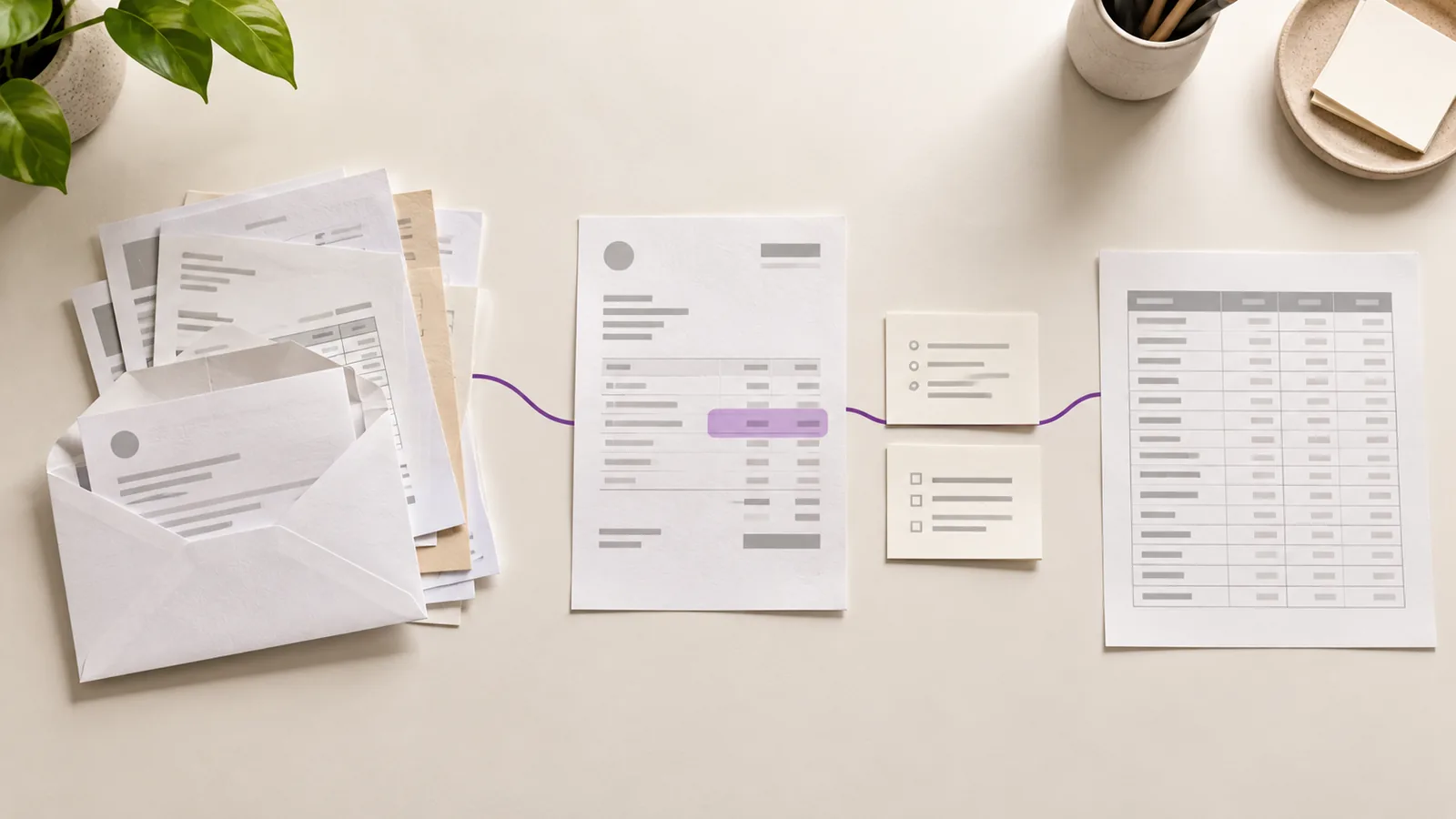
A supplier sends an invoice to your AP inbox. What happens next?
For many teams, the answer depends on who opens the email. One person saves the PDF. Another copies its details into a spreadsheet. A controller checks a questionable amount. Someone else enters the approved information into the accounting system.
Each person may do their part carefully. The difficulty is keeping the invoice, its source pages, its current status, and the decision about it connected throughout the process.
Invoice workflow automation gives that work a defined path. It helps a finance team receive documents, identify the invoices within them, capture details, review what needs attention, and hand off checked information. The aim is to spend less effort moving data between places and more attention on decisions that matter.
The short version
A useful AP invoice workflow should:
- Give incoming documents one place to land.
- Identify which files and pages are invoices.
- Capture invoice details while keeping the source available.
- Surface missing or questionable information for review.
- Record what happened to each invoice.
- Move reviewed data into the accounting process without confusing export with payment approval.
You can improve those steps without replacing your accounting system.
What is invoice workflow automation?
Invoice workflow automation is the set of steps that moves a supplier invoice from arrival to a reviewed handoff. It may begin with an email attachment or uploaded PDF and end with structured data ready for your accounting process.
The steps are related, but each answers a different question:
| Stage | Question it answers |
|---|---|
| Intake | Did we receive the document, and where is it now? |
| Identification | Is it an invoice, and how many invoices are in the file? |
| Capture | What details appear on each invoice? |
| Review | Are those details accurate, complete, and ready to use? |
| Exception handling | Who must resolve a discrepancy? |
| Handoff | Which reviewed data should move forward? |
A tool that captures text from a PDF helps with one stage. The workflow has to carry the invoice through the others.
1. Bring invoices into a visible queue
A dedicated AP address gives suppliers a clear destination. Teams also need a way to bring in invoices received through personal email, portals, or direct file uploads.
When a document arrives, it should have a visible place in the queue. That sounds basic, but it prevents a common ambiguity: an email was opened, so everyone assumes the invoice was processed.
Start with a few statuses your team can use consistently—for example, received, needs review, ready for export, and resolved without export. The exact wording matters less than knowing what has and has not happened.
Ask your team: Can we tell whether an invoice is still waiting, even when the person who received it is away?
2. Identify the invoices before capturing data
One attachment does not always equal one invoice. A supplier may combine two invoices in a PDF, include a delivery note after an invoice, or resend a corrected document alongside the original.
Identify the document and group its pages before treating extracted details as an invoice record. If the pages are grouped incorrectly, even accurate field extraction can attach information to the wrong bill.
This is especially useful for teams handling supplier packets or long PDFs. The reviewer should be able to see where one invoice ends, where the next begins, and which pages are supporting material.
For a worked example, see One supplier email, two invoices, six pages.
3. Capture details with the original document in view
Once an invoice has been identified, capture the details your process needs: supplier, invoice number, dates, amounts, tax, and line items where relevant.
The next step is verification. If a captured total seems wrong, the reviewer should be able to check it against the invoice page. If an invoice number contains a questionable character, they should be able to correct it while looking at the source.
This is the distinction between reading a document and relying on its data. Why OCR isn’t enough explains that gap in more detail.
Choose the fields your team actually reviews and exports. Showing every possible extracted value can make a review slower rather than more useful.
4. Make review decisions explicit
A reviewer needs to know what they are being asked to decide. “Check this invoice” is vague. “The line items do not agree with the total shown on page two” gives them a place to start.
A practical review may include:
- Checking the supplier and invoice number.
- Recalculating totals and examining line items.
- Looking for a possible duplicate.
- Checking a PO reference when the purchase requires one.
- Confirming that the invoice is ready for the next approval step.
Some checks can surface a mismatch. A person still needs to decide what the mismatch means. A revised invoice number, for example, might indicate a corrected bill or a duplicate of one already received.
Use an invoice review checklist to define the decisions your team wants to make consistently.
5. Give exceptions a clear owner
Consider an invoice with a unit price above the purchase order price. AP can spot the difference, but the buyer may know whether the increase was agreed.
The workflow should keep the invoice in review, show the question, and make clear who can resolve it. The reviewer should not have to search an old email thread to discover why the invoice was held.
Different exceptions may need different owners. A supplier can issue a corrected invoice. A buyer can confirm a price change. A controller can decide how to handle an accounting question. Record the answer with the invoice so the next person can understand why it moved forward.
6. Hand off reviewed data at the right point
After review, the invoice data may be exported for use in an accounting system. Keep this boundary clear: reviewed and ready for export does not automatically mean approved for payment.
Your existing process may still require expense approval, PO or receipt matching, accounting checks, and payment authorization. Define where those decisions occur so that everyone knows what the invoice-review step has completed.
The original document should remain available. If someone later questions a value, the team needs to find the page it came from and the decision made during review.
How to evaluate an invoice workflow
A polished extraction demo is a useful start. Test the complete path with documents your team actually receives.
Include a clean invoice, a scan, a multi-page invoice, a PDF containing more than one invoice, a possible duplicate, and an invoice with a value that needs correction. Then ask:
- Can we account for every incoming document?
- Can we correct page grouping when it is wrong?
- Can a reviewer compare each important value with the source?
- Is it clear why an invoice needs attention?
- Can we tell who resolved the issue and what happened next?
- Can reviewed information reach our accounting process in a usable form?
These questions reveal where your team still has to fall back to email, spreadsheets, or memory.
Measure the whole review process
Track hands-on intake and review time, but also track corrections, invoices waiting for an answer, and records sent back from accounting. A faster first pass has limited value if it creates rework downstream.
Start with a representative sample of your own invoices and record how they move today. Use the same types of documents when evaluating a new workflow. That will tell you more than a generic percentage about how much time your team could save.
Where Claribo fits
Claribo focuses on the work between incoming documents and accounting handoff. It gives AP teams an inbox for invoices, supports review of page grouping and extracted details against the source document, and lets teams prepare reviewed data for export.
That makes it useful when your current process involves opening supplier emails, sorting PDF pages, re-keying fields, and checking those fields before they move forward. Your team remains responsible for the purchase, accounting, and payment decisions that follow.
If you want to see how that would work with the documents your suppliers actually send, request a Claribo demo. Bring a clean invoice and a messy one. Both should have a clear path through the workflow.